Small images create real problems in product, marketing, and design work. A supplier sends a compressed product photo. A founder wants to reuse an old headshot. A screenshot looks soft in a pitch deck. A thumbnail that worked on mobile suddenly needs to become a larger hero visual for a landing page.
These are common problems for ecommerce teams, creators, founders, small agencies, and content managers. Most people do not want to open a heavy editing tool to make one image sharper. They want a fast way to turn a weak asset into something more usable.
I tested NanoPhoto.AI’s upscale image page as a quick option for improving small or soft images without making the task feel like a full editing project. The page keeps the process simple: upload an image or paste a public image URL, choose the output resolution and format, preview the result, and download the enhanced file.
Tool Gives Users Practical Output Choices
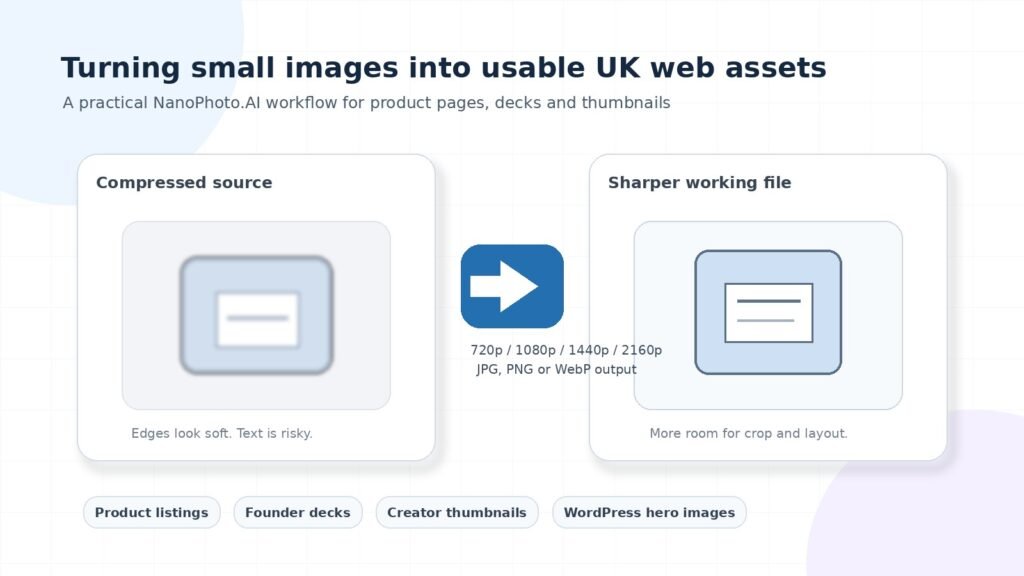
The first useful thing about NanoPhoto.AI is that it does not treat every image the same. The page gives users visible choices for upload, image URL input, output format, and target resolution. That matters because different publishing jobs need different outputs.
A product listing does not always need the same image size as a landing page banner. A social thumbnail may need a lighter web-friendly format. A transparent graphic may need PNG. A screenshot for a deck may need enough sharpness to look clean on a large screen.
This is where the tool feels practical. It helps users think about where the image will be used before generating the file.
Resolution Should Match the Final Use
The page lists common output targets such as 720p, 1080p, 1440p, and 2160p. These options are helpful because they match real content needs.
A 720p file may be enough for a small web image. A 1080p result can work for standard product photos, social posts, and basic marketing visuals. A 1440p or 2160p version gives more room for larger layouts, landing page sections, pitch decks, and cleaner crops.
The important point is that bigger is not always better. If the original image is badly compressed or extremely small, pushing it too far can make odd details more visible. Choosing the right output size helps keep the result useful and natural.
Preview Step Is More Important Than It Looks
Image enhancement is not only about making a file larger. Basic resizing can stretch pixels and make blur, noise, and compression marks easier to notice. A good tool should improve the perceived detail, not just increase the dimensions.
The preview area gives users a chance to check the result before using it. This is especially important when the image includes faces, product labels, packaging, small text, fabric, hair, logos, or interface details.
For ecommerce images, a slightly distorted label can damage trust. For software screenshots, unclear UI text can make the image look unprofessional. For portraits, unnatural skin texture can make the image feel over-edited. A quick human review is still necessary before publishing.
NanoPhoto.AI makes the process fast, but the final quality check should not be skipped.
Workflow Is Simple Enough for Repeat Use
The best part of the workflow is that it stays short. Upload or paste a URL, choose the resolution, select the format, preview the result, and download. That is the kind of process people can repeat across several assets without slowing down their day.
This matters because image enhancement is often not the final creative step. It is usually the preparation stage before cropping, background removal, retouching, ad design, slide creation, product listing updates, or publishing.
For example, a marketer may receive a product image that looks fine in a supplier email but weak on a website. A creator may have a portrait that works in a profile picture but looks soft in a YouTube cover. A founder may want to reuse an old launch screenshot in an investor deck but needs it to look sharper on a slide.
In each case, the user does not want to spend half an hour adjusting technical settings. They need a cleaner source asset, so the next design step is easier.
Public URL Input Makes Team Work Faster
The public URL option is a useful detail for teams. Many images already live in cloud folders, websites, content systems, or shared asset libraries. If the image URL is public and accessible, the user can paste it directly instead of downloading and uploading the same file again.
That may sound small, but it saves time when handling several assets. It also makes the tool easier to use in a team workflow where files are already shared online.
For teams needing a focused AI image upscaler, NanoPhoto.AI feels useful because it keeps the technical process in the background while giving users enough control over the final output.
Best Use Cases for the Tool
NanoPhoto.AI works best when the original image already has a clear subject but lacks enough resolution for the next layout. It is not designed to rescue every damaged or tiny file, but it can improve many everyday images that are close to usable.
Product Listings
Product listings are one of the strongest use cases. Supplier photos, phone images, and old catalogue files often arrive in mixed sizes. Some may look acceptable on a small screen but weak when placed in a product gallery.
A sharper file can help make a product page feel more consistent. It can also give shoppers a better view of product edges, materials, packaging, and details. In online retail, image quality affects trust. A clean product visual can make the item feel more credible.
Creator Thumbnails and Social Assets
Creators often reuse the same visuals across different platforms. A portrait, prop image, course graphic, or thumbnail may need to work in several sizes. A sharper version gives more room for cropping and layout changes without immediately exposing blur.
This is useful for YouTube covers, blog graphics, podcast artwork, course pages, social posts, and promotional banners. Instead of creating everything again from scratch, creators can improve an existing image and adapt it for the new format.
Pitch Decks and Launch Materials
Soft images stand out quickly in presentations. A blurry screenshot or low-quality product photo can make a slide feel less polished, even if the idea behind it is strong.
For founders and small teams, upscaling can be a quick way to improve assets before sending a deck to investors, clients, partners, or internal stakeholders. The same applies to landing pages and launch campaigns where the first visual impression matters.
Where Users Still Need to Be Careful
AI-based enhancement is useful, but it is not magic. It cannot perfectly recover information that was never present in the original file. If an image is extremely tiny, heavily compressed, badly blurred, or full of noise, the result may still have limits.
Users should be especially careful with product labels, legal text, UI screenshots, technical diagrams, brand marks, and portraits. These images need accuracy, not just sharpness.
The best approach is simple: use the tool to create a better working version, then compare the result with the original before publishing. If the image represents a product, person, app interface, or important brand detail, that review step matters.
Conclusion
NanoPhoto.AI is useful because it solves a common content problem without making the workflow feel heavy. Many teams already have images that are good in concept but too small, soft, or compressed for modern publishing needs. This tool gives them a quick way to create a cleaner version for the next design step.
Its main strength is the simple process. Users can upload an image or paste a public URL, choose a sensible resolution, select the right format, preview the result, and download the enhanced file. That makes it practical for product listings, thumbnails, launch assets, pitch decks, social graphics, and everyday marketing work.
It is not a replacement for professional photography or expert retouching, and users should still check the output carefully. But for creators, marketers, founders, and small teams who need better image quality without turning the task into a large editing job, NanoPhoto.AI offers a focused and practical solution.